
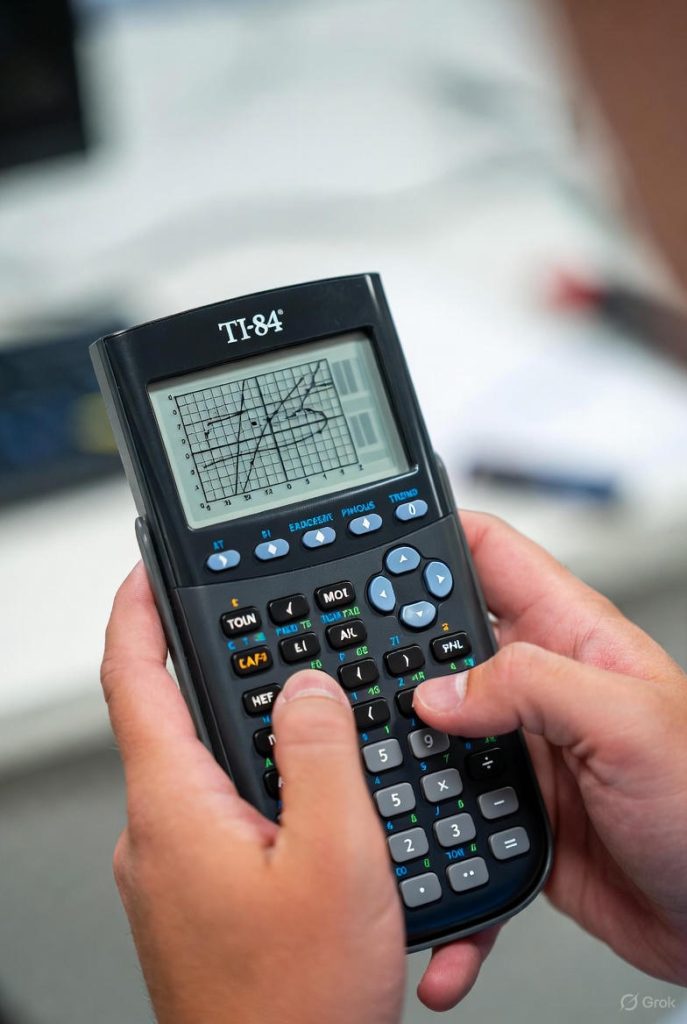
TI 84 calculator series (including TI 84 Plus, TI-84 Plus Silver Edition, TI 84 Plus C Silver Edition, and TI-84 Plus CE) is one of the most widely used graphing calculators in high schools and colleges. One of its most powerful features is the ability to display several functions simultaneously on the same screen. This capability allows students and professionals to compare graphs, identify intersections, analyze behavior, and visualize mathematical relationships in real time. Mastering the process of graphing multiple functions efficiently will dramatically improve your productivity in algebra, precalculus, calculus, and even statistics courses.
Preparing the ti 84 Calculator for Multiple Graphs
Before entering any equations, a clean and properly configured calculator ensures accurate results and a clear display. Start by clearing any previous functions that might still be stored in the calculator’s memory. Press the Y= key at the top left of the keypad. You will see a list labeled Y₁, Y₂, Y₃, and so on up to Y₀ (ten function slots are available on most models).
If any of these lines contain equations or leftover expressions, highlight the line by moving the cursor over it and press CLEAR. Repeat this for every occupied slot you do not intend to use. Clearing old functions prevents confusion and accidental overlap of unwanted graphs.
Next, consider resetting the window (viewing rectangle) to a standard setting that works well for most initial explorations. Press WINDOW and set the values to the commonly accepted “friendly” window:
- Xmin = –10
- Xmax = 10
- Xscl = 1
- Ymin = –10
- Ymax = 10
- Yscl = 1
- Xres = 1
Press GRAPH once to confirm that the axes appear without any stray graphs. If the screen remains blank or shows only axes, you are ready to proceed.
Entering Multiple Functions in the Y= Editor
The heart of multiple graphing lies in the Y= editor. Each Y-variable (Y₁ through Y₀) can hold one function of x. To enter the first function, move the cursor to the line that reads “Y₁=”. Type the expression using the calculator’s keys. For example, to graph y = x² – 4x + 3, press the keys in this order:
X,T,θ,n x² – 4 X,T,θ,n + 3
When finished, press ENTER or simply move the cursor down to the next line.
To add a second function, move to “Y₂=” and enter another expression, such as y = 2x + 1:
2 X,T,θ,n + 1
Continue this process for as many functions as needed (up to ten). The TI 84 will automatically assign a different line style or color (on color models such as the TI 84 Plus CE) to each active function so that you can distinguish them on the graph.
Activating and Deactivating Individual Functions
A small but crucial detail appears immediately to the left of each Y= line: a slash (/) or a highlighted equals sign. When the equals sign is dark (highlighted), that function is active and will be graphed. When it is light or shows a slash, the function is deactivated and will not appear.
To toggle a function on or off without deleting it, move the cursor to the equals sign and press ENTER. This feature is extremely useful when you want to compare two functions alone, then add a third, then hide one temporarily to reduce clutter.
Choosing Graph Styles for Clarity
The TI 84 offers seven distinct graph styles that make it much easier to tell functions apart, especially when several overlap or intersect frequently. To change a style, move the cursor all the way to the left until it highlights the small icon next to the Y= line, then press ENTER repeatedly to cycle through the options:
- Normal line (thick on CE models)
- Thick line
- Shaded above the curve
- Shaded below the curve
- Path (leaves a trail as it plots)
- Animate (moving dot)
- Dotted line
For multiple graphs, a common professional practice is to leave the first function as a normal or thick line, make the second function dotted, the third shaded above, and the fourth shaded below. This combination almost guarantees that even intersecting or coincident graphs remain distinguishable.
On color models (TI 84 Plus C Silver Edition and CE), the calculator automatically assigns different colors, but you can still override with styles for extra clarity.
Adjusting the Viewing Window for Optimal Display
When graphing several functions simultaneously, the default –10 to 10 window may not show all important behavior. Polynomials of higher degree, rational functions, or exponential functions often require customized windows.
Press WINDOW and adjust the parameters thoughtfully. A systematic approach includes:
- Determine the domain of interest (where you need to see behavior).
- Find approximate range values by evaluating the functions at key x-values or using the TABLE feature.
- Set Xmin and Xmax slightly beyond the domain of interest.
- Set Ymin and Ymax to include the lowest and highest y-values with a little padding.
- Adjust Xscl and Yscl to reasonable tick-mark intervals (powers of 10 or simple fractions).
After changing the window, always press GRAPH again to refresh the display.
For even quicker optimization, use the ZOOM menu. ZStandard returns to the –10 to 10 window, ZSquare adjusts the pixels so that one unit on the x-axis equals one unit on the y-axis (very useful for circles and when comparing slopes), and ZFit automatically adjusts Ymin and Ymax to fit all active graphs while keeping your chosen Xmin and Xmax.
Using the TRACE Feature with Multiple Graphs
Once several functions are graphed, pressing TRACE places a blinking cursor on the graph that was entered first (usually Y₁. The top of the screen shows the equation and the coordinates of the point under the cursor.
To move the trace cursor from one graph to another, simply press the up arrow or down arrow keys. The calculator will jump to the nearest point on the next active graph at the same x-value (if it exists). This feature is invaluable for comparing y-values at the same x, estimating intersection points, or observing which function is above or below another in a given interval.
On color models, the equation at the top appears in the same color as its graph, further reducing confusion.
Finding Intersection Points Between Graphs
One of the most common tasks when graphing multiple functions is locating points of intersection. The TI 84 provides a built-in intersect tool that works beautifully with several graphs on screen.
- Press 2nd → TRACE (CALC menu).
- Choose 5: intersect.
- The calculator asks “First curve?” Press ENTER on the desired curve (or use ↑/↓ to select).
- “Second curve?” Select the second function the same way.
- “Guess?” Move the trace cursor close to the intersection you want (especially helpful when curves cross multiple times) and press ENTER.
The calculator will display the coordinates of the intersection with high precision. Repeat the process for additional intersection points. Even with five or six functions on screen, you can pairwise find every intersection systematically.
Analyzing Multiple Graphs with the TABLE Feature
The TABLE provides numerical insight that complements the graphical view. Press 2nd → GRAPH (TABLE). The table displays x-values in the left column and the corresponding y-values for every active Y-function in separate columns.
Scroll up and down with the arrow keys or set a custom TblStart and ΔTbl in the TABLE SETUP menu (2nd → WINDOW) to focus on a specific interval. Seeing exact values side-by-side is particularly helpful when verifying intersections, comparing growth rates, or preparing accurate charts for reports.
Graphing Multiple Functions in Different Modes
The TI 84 supports several graphing modes that affect how multiple functions appear:
- Function mode (default): y as a function of x (what we have used so far).
- Parametric mode: each graph defined by X_T and Y_T (useful for circles, ellipses, projectiles). You can still enter several parametric pairs (up to X₆T/Y₆T).
- Polar mode: graphs defined as r = f(θ). Multiple polar equations can be entered in r₁, r₂, etc.
- Sequence mode: for recursive sequences u(n), v(n), w(n).
Regardless of mode, the same principles of activating/deactivating with the equals sign, changing styles, and using TRACE jumping between curves, and using intersect apply.
Advanced Formatting Options on the TI 84 Plus CE
The color TI 84 Plus CE introduces additional formatting choices that greatly enhance multiple-function graphing. Press Y=, move the cursor left to the style icon, and press ALPHA → TRACE (or F1–F5 on some firmware) to open a format bar where you can directly select line color, line style, and even background grid color. Choosing highly contrasting colors (e.g., red, blue, green, purple, orange) makes presentations and classroom projections far clearer than the monochrome models.
Practical Example: Comparing Four Functions Simultaneously
Consider the system:
Y₁ = x² – 4x + 3 Y₂ = 2x + 1 Y₃ = –x + 6 Y₄ = 4 (a horizontal line)
Enter each in the Y= editor. Set Y₁ as thick, Y₂ as dotted, Y₃ as shaded above, and Y₄ as a different color or thick line. Adjust the window to Xmin=–2, Xmax=7, Ymin=–2, Ymax=12 for a clean view.
Press GRAPH. You will immediately see a parabola opening upward, two intersecting lines, and a horizontal line. Using TRACE and ↑/↓, you can watch how Y₂ and Y₃ cross the parabola and how Y₄ cuts through all three. Running the intersect command between pairs reveals exact solutions to equations such as x² – 4x + 3 = 2x + 1 or x² – 4x + 3 = 4 without any algebraic manipulation.
Troubleshooting Common Issues
- “ERR: INVALID” when graphing: One of the functions contains a syntax error or attempts to divide by zero in the current window. Return to Y= and check each equation carefully.
- Graphs not appearing: The equals sign is not highlighted, or the function lies completely outside the current window.
- Overlapping graphs impossible to distinguish: Change graph styles or colors, or temporarily deactivate some functions.
- Slow graphing: High-degree polynomials or complicated rational functions plot slowly. Increase Xres (e.g., to 3 or 5) for faster but less smooth results, or narrow the window.
Best Practices for Professional Multiple-Function Graphing
Always label your functions clearly in the Y= editor (you can insert short text comments after a function by typing them inside quotation marks; they won’t affect graphing but help you remember). Save important sets of equations using the PRGM → STO→ feature or by archiving the Y-vars. When presenting work, use ZSquare for accurate slope perception and consider transferring the screen to a computer using TI-Connect CE software for inclusion in reports.
By mastering the techniques presented in this guide—from basic entry and style selection to advanced tracing, intersection finding, and window optimization—you will be able to graph and analyze multiple functions on the TI 84 with the efficiency and precision expected in upper-level mathematics courses and professional settings. The ability to visualize several relationships at once remains one of the most powerful tools the TI 84 offers, and with practice, it becomes second nature.
Conclusion
TI 84 calculator turns a compact calculator into a remarkably powerful visual analysis tool that brings mathematical relationships to life instantly. By carefully entering functions, choosing distinct styles and colours, optimizing the viewing window, and skill fully using TRACE, INTERSECT, and TABLE features, you can compare behaviours, locate intersection points with precision, and gain deep insights without lengthy algebraic work. These techniques not only save valuable time during tests and assignments but also produce clean, professional-looking graphs that clearly communicate ideas in any classroom or academic setting.