
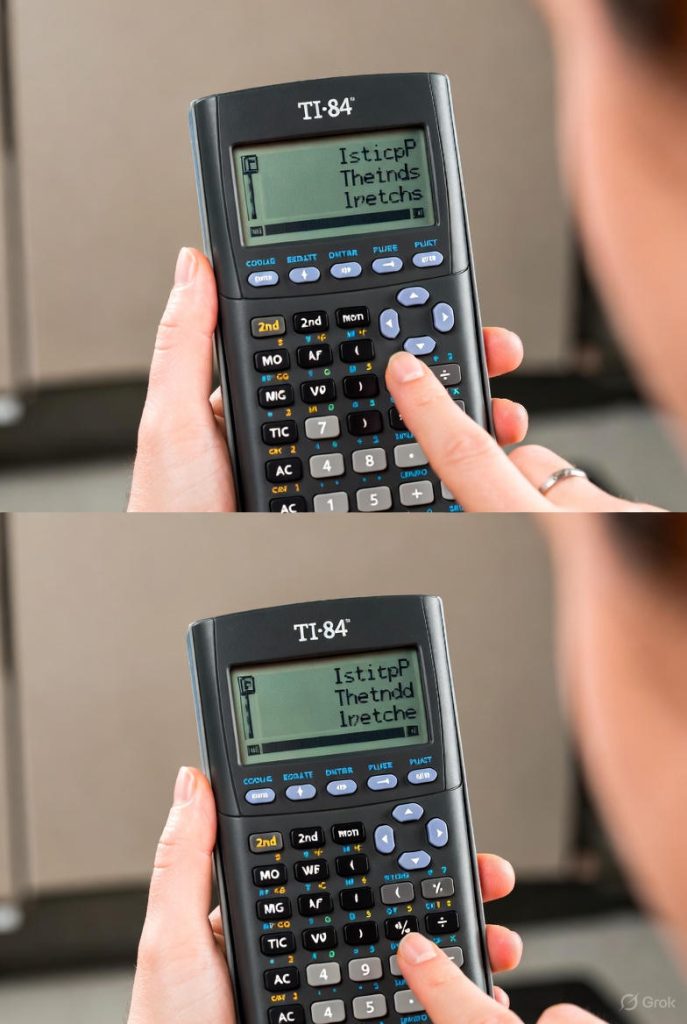
The Texas Instruments TI 84 series, including the TI 84 Plus, TI 84 Plus Silver Edition, TI 84 Plus C Silver Edition, and TI 84 Plus CE, remains one of the most widely used graphing calculators in high school and college mathematics classrooms worldwide. One of the most common issues users encounter, especially after replacing batteries or using the device for an extended period, is a display that appears too faint or too dark. Fortunately, adjusting the contrast (and, on color models, perceived brightness) is straightforward once you understand the built-in mechanism Texas Instruments implemented.
Display Behaviour Across TI 84 Calculators Models
Before diving into the adjustment process itself, it is essential to recognize that not all TI 84 models handle the screen the same way. The original TI 84 calculator and TI 84 Plus Silver Edition use a monochromatic liquid-crystal display (LCD) with no backlight. On these calculators, what users commonly refer to as “brightness” is entirely controlled by contrast the degree of difference between the dark pixels and the reflective background. The TI 84 Plus C Silver Edition introduced a high-resolution color screen, still without a backlight, so contrast remains the only user-adjustable parameter affecting visibility. Only the newest TI 84 Plus CE family features a backlit color LCD, which introduces a separate brightness control in addition to contrast.
Regardless of the specific variant you own, the fundamental method of changing the screen appearance begins with the same key combination.
The Universal Method: Using the 2nd and Arrow Keys
Texas Instruments designed a consistent, hardware-level contrast adjustment that works on every TI 84 model ever released. The process relies on the [2nd] key (the yellow key in the top-left corner) and the up and down arrow keys.
To make the screen darker (increase contrast), press and hold the [2nd] key, then repeatedly press the up arrow ▲. Each press of the up arrow while holding [2nd] increases the contrast by one level. You will immediately see the pixels become darker and the background lighter.
To make the screen lighter (decrease contrast), press and hold the [2nd] key, then repeatedly press the down arrow ▼. Each press lightens the display by one level until the screen eventually becomes completely blank if you go too far.
This method works whether the calculator is freshly turned on, in the middle of a program, or even displaying a graph or table. The contrast setting is stored in non-volatile memory, meaning it persists after the calculator is turned off and will remain the same the next time you power it on.
Step-by-Step Contrast Adjustment Procedure
Turn on your TI 84 calculator by pressing the [ON] key. Observe the current display. If the screen is so faint that you can barely read the home screen, immediately begin pressing [2nd] + ▲ repeatedly until text becomes clearly visible. Most users find a comfortable setting somewhere between 15 and 25 presses from the minimum, though this varies depending on ambient lighting and battery condition.
If the screen appears overly dark to the point where the background looks gray instead of white, press [2nd] + ▼ repeatedly until the display lightens to your preference. A properly adjusted screen shows crisp black pixels against a clean white or light-gray background (on monochrome models) or vibrant colors (on color models).
Continue fine-tuning by alternating between [2nd] + ▲ and [2nd] + ▼ until the display reaches the optimal level for your eyes and the current lighting environment.
Why Contrast Drifts and When to Adjust
New batteries typically cause the screen to appear extremely faint because the calculator defaults to the lowest contrast setting after a battery change or memory reset. As batteries age and voltage drops, the maximum achievable contrast diminishes, often requiring users to increase the setting further. Extreme temperatures also affect LCD performance—cold environments make the screen appear faint, while very warm conditions can make it look darker than usual.
Classroom lighting plays a significant role as well. Under bright fluorescent lights or near windows, you may prefer a higher contrast setting. In dimmer settings, such as evening study sessions, lowering the contrast prevents eye strain.
Special Considerations for the TI 84 Plus CE (Color Backlit Model)
The TI 84 Plus CE introduced a major change: a backlit, high-resolution color screen. On this model, Texas Instruments separated traditional LCD contrast from backlight brightness.
Accessing the Brightness Control on the CE
Press [2nd] + [ON] simultaneously to open the brightness adjustment bar at the bottom of the screen. While continuing to hold [2nd], press the up arrow ▲ to increase backlight brightness or the down arrow ▼ to decrease it. The CE offers eight distinct brightness levels, represented by a row of segments that fill from left to right as brightness increases.
The lowest setting conserves battery life significantly and is often sufficient in normal room lighting. The highest setting dramatically improves visibility in direct sunlight or very bright environments but consumes power much faster.
Contrast Still Exists on the CE
Even with backlight control, the underlying LCD contrast can still be adjusted using the classic [2nd] + ▲/▼ method. Most CE users find that keeping contrast around the midpoint (approximately level 4–6) and adjusting only the backlight provides the best experience. Excessively high contrast combined with maximum brightness can make thin lines appear overly bold or cause color distortion.
Practical Scenarios and Recommended Settings
In a Brightly Lit Classroom or Outdoors
Increase contrast substantially on monochrome models (20–30 presses of [2nd] + ▲ from minimum). On the CE, set backlight to level 7 or 8 and keep contrast moderate. This combination overcomes glare and washout.
In Low-Light or Evening Study Environments
Reduce contrast on monochrome models to the lowest comfortable level (often 5–10 presses from minimum). On the CE, drop backlight to level 2 or 3 and lower contrast slightly. This reduces eye fatigue during long sessions.
After Installing New Batteries
Expect the screen to be nearly invisible at first. Immediately press [2nd] + ▲ approximately 20–25 times rapidly. Fine-tune afterward.
When Sharing the Calculator
Different users prefer different settings. Always check contrast before handing the device to someone else, especially if they wear glasses or have different vision needs.
Troubleshooting Persistent Display Problems
If repeated [2nd] + ▲ presses yield no visible change even with fresh batteries, the calculator may have experienced a RAM clear or hardware fault. Perform a manual memory reset by removing one battery, pressing and holding [ON] for ten seconds, then reinserting the battery. This forces the calculator to default settings, after which contrast adjustment should function normally.
A faint vertical or horizontal line that does not respond to contrast changes usually indicates physical LCD damage rather than a settings issue. In such cases, repair or replacement becomes necessary.
Battery Type and Display Performance
Alkaline AAA batteries remain the standard recommendation. Rechargeable NiMH batteries often provide lower voltage (1.2 V versus 1.5 V when fresh), which can limit maximum contrast on monochrome models. If you notice the screen never gets as dark as it once did despite new rechargeables, switching temporarily to alkalines will confirm whether voltage is the limiting factor.
Long-Term Care to Minimize Contrast Issues
Store the calculator away from extreme heat, which can permanently damage the LCD. Avoid leaving it in direct sunlight inside a car. When changing batteries, do so quickly to minimize time without power—prolonged power loss can sometimes trigger an automatic contrast reset to minimum.
Clean the screen only with a soft, dry microfiber cloth. Liquid cleaners can seep into the LCD assembly and cause permanent dark or light spots.
Mastering Visibility for Years of Reliable Use
Mastering contrast and brightness adjustment transforms the TI 84 from a sometimes frustrating device with an illegible screen into a dependable tool that remains clear in virtually any environment. The process requires no menus, no mode changes, and no external software—just the simple [2nd] + arrow combination that Texas Instruments wisely kept consistent across two decades of hardware revisions.
Whether you are preparing for the SAT, working through calculus homework at midnight, or demonstrating a graph to a classroom under harsh fluorescent lights, taking thirty seconds to optimize the display ensures that the calculator itself never becomes the obstacle to understanding the mathematics it was designed to illuminate.
Conclusion
TI 84 calculator is a simple yet essential step to ensure clear visibility and comfortable use in any environment. By using the calculator’s dedicated contrast buttons or menu settings, users can easily fine-tune the display to suit lighting conditions and personal preference. Maintaining the correct contrast not only improves readability but also enhances the overall functionality and usability of the TI 84 calculator.