
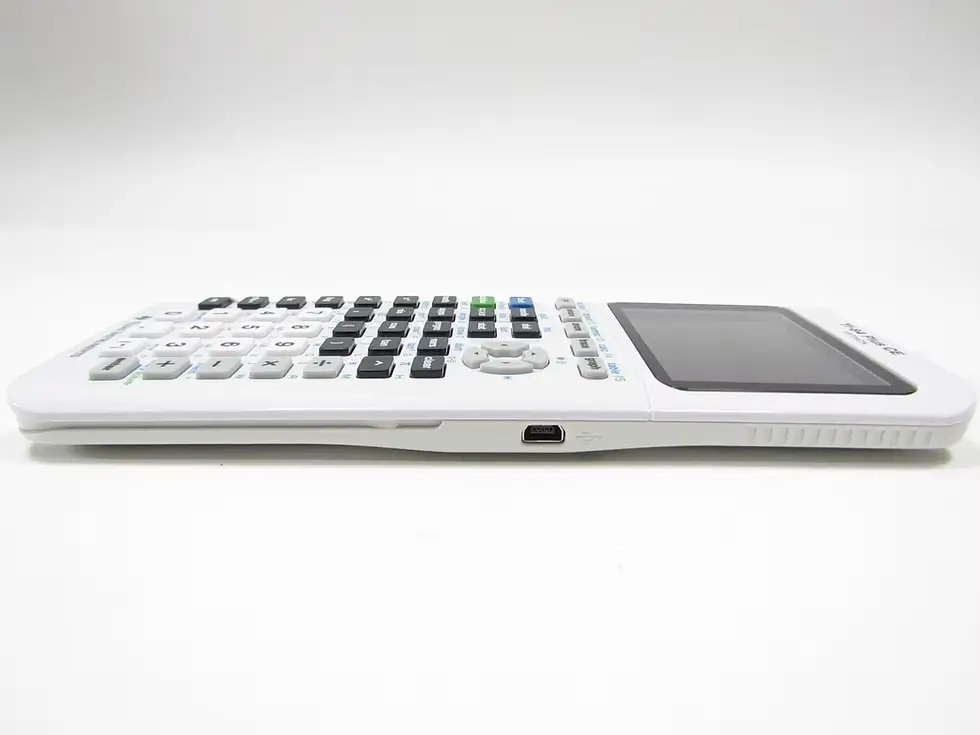
TI 84 Plus series, including the TI 84 Plus, TI 84 Plus Silver Edition, TI 84 Plus C Silver Edition, and TI-84 Plus CE, remains one of the most powerful and widely used graphing calculators in high schools and universities worldwide. While the calculator ships with a solid collection of built-in applications, the true potential is unlocked when you begin adding third-party apps and programs. These range from advanced math solvers and chemistry periodic tables to full games, equation libraries, and productivity tools that can dramatically extend the life and capability of your device.
This comprehensive guide walks you through every practical method of downloading and installing applications on any TI 84 calculator series calculator in 2025, with detailed explanations of each step, required equipment, software choices, and best practices to avoid common pitfalls.
The TI 84 Ecosystem and App Types
Before transferring anything to your calculator, it is essential to understand what constitutes an “app” versus a regular program on the TI-84 platform.
Texas Instruments officially distinguishes between two main categories:
- App (Application) These are signed, flash-based programs that occupy the calculator’s Archive (Flash ROM) memory rather than RAM. They appear on the [APPS] menu with a distinct icon, survive RAM clears, and can be several hundred kilobytes in size. Classic examples include Cabri Jr., Periodic Table, Polynomial Root Finder, and Inequality Graphing.
- Program (written in TI-BASIC or Assembly) These are smaller, usually stored in RAM, and appear under [PRGM]. They are easier to edit on-calc but disappear if the batteries die or a RAM clear occurs unless archived manually.
Most of what students refer to as “apps” today are actually large assembly programs or hybrid App pages distributed as .8xk files. These behave exactly like official TI Apps: they appear in the [APPS] menu, survive RAM resets, and are protected from accidental deletion. MirageOS, Doors CS, Periodic, Ion, Omnicalc, xLIB, Celtic III, and hundreds of games are distributed in this .8xk App format.
All methods described below work for both official TI Apps (.8xk) and third-party .8xk App files.
Required Equipment and Software in 2025
You will need one of the following connection methods:
A. Direct USB cable connection (recommended for all modern computers)
- TI-84 Plus / Silver Edition → Mini-USB cable (same as early BlackBerry phones)
- TI-84 Plus C Silver Edition → Mini-USB cable
- TI-84 Plus CE / CE Python → Micro-USB cable (same as most Android phones before USB-C)
B. TI Connect CE software (Windows/macOS) – free from Texas Instruments C. Third-party alternatives (often preferred by power users):
- TILP II (Linux, Windows, macOS)
- TI Connect CE is no longer the only good option in 2025; many prefer TILP or the web-based tools below.
D. Web-based solutions (no software installation required)
- jsTIfied + TI-Planet App repository (works in any browser)
- Cemetech’s “TI-84 Plus CE App Uploader” web tool
- TI’s official eActivities web portal
The Official Texas Instruments Way – TI Connect CE (Windows & macOS)
This remains the most beginner-friendly method and is fully supported by TI.
- Download and install TI Connect CE Visit education.ti.com, go to Software & Apps, and download the latest version of TI Connect CE. As of 2025, version 6.x is current.
- Connect your calculator Plug the USB cable into both the calculator and your computer. Turn the calculator ON. Windows and macOS will automatically recognize the device. On the calculator screen you will see “USB Cable Connected” or similar.
- Launch TI Connect CE The main window shows your connected calculator on the left sidebar.
- Locate your .8xk App file Official TI Apps can be downloaded directly inside TI Connect CE under the “App Installer” tab. Third-party apps must be downloaded separately from trusted sites and saved to your computer.
- Sending the App Drag and drop the .8xk file onto your calculator’s name in the sidebar, or use Actions → Send to Calculator. A progress bar appears both on screen and on the calculator. When complete, the calculator will say “Done” and automatically return to the home screen.
- Finding your new App Press the [APPS] key. Scroll through the list. Your newly installed App now appears alphabetically with its own icon.
Using TILP II – The Power User’s Choice (Windows, macOS, Linux)
- TILP (TI Linking Program) has been the preferred tool among the calculator community for over fifteen years because it is faster, more reliable, and never nags you to update.
- Install TILP II Available from ti-planete.org or the official GitHub repository.
- Connect and detect the calculator Upon launch, TILP automatically detects your TI-84 Plus family calculator and shows its contents in a familiar file-browser layout.
- Drag and drop Simply drag your .8xk file from your computer into the TILP window, directly into the Archive section (Flash). Release the mouse, and TILP handles the transfer in the background.
- Refresh and verify Press the refresh button. Your new App will appear in the list with the correct icon.
TILP is especially useful when transferring dozens of apps at once, as it is significantly faster than TI Connect CE.
Browser-Based Transfer – No Software Installation Required
In 2025, the easiest method for most students is completely browser-based.
Option A – Using jsTIfied + TI-Planet (works on phones, tablets, Chromebooks, everything)
- Open Chrome, Edge, or Firefox Go to tiplanet.org/jstified
- Connect your calculator via USB The browser will request permission to access the USB device. Grant it.
- Choose your App TI-Planet hosts thousands of .8xk apps. Browse or search, then click “Send to Calculator”.
- Instant transfer The transfer begins immediately. No software, no drivers, works even on school Chromebooks that block executables.
Option B – Cemetech Web Uploader
Cemetech.net offers a similar one-click web uploader that works with virtually every TI-84 model manufactured since 2004.
Transferring from Another TI-84 Using the Link Cable
If you do not have access to a computer, you can still transfer apps calculator-to-calculator using the old I/O link cable (the 2.5 mm unit-to-unit cable).
- Connect two TI-84s with the link cable Both calculators must be on and showing the home screen.
- On the receiving calculator Press [2nd] → [LINK] → RECEIVE → [ENTER] It will say “Waiting…”
- Wait for completion The receiving calculator will show “Done” and the App is now installed.
This method is much slower than USB and is rarely used in 2025 except in testing environments or when computers are prohibited.
Where to Safely Download Apps in 2025
The calculator community has consolidated around a handful of extremely reliable archives:
- TI-Planet (France) – largest collection, excellent search, direct web transfer
- Cemetech (USA) – extremely high-quality programs, active forums, SAX/Chat support
- ticalc.org – the historic archive, still active and trustworthy
- Omnimaga (revived in 2024) – specializes in large RPGs and assembly shells
All four sites have strict moderation. Files are scanned, and malicious programs are virtually nonexistent in the TI community.
Most Popular and Useful Apps in 2025
While tastes vary, these apps consistently top download charts:
- MirageOS – the most famous shell; allows running hundreds of assembly games and programs from a graphical menu.
- Doors CS 7.4 / Doors CSE 8.2 – modern successor to MirageOS with desktop-like interface, mouse support on CE, file manager, and built-in BASIC editor.
- Periodic – full interactive periodic table with molar mass calculator, solubility rules, and polyatomic ions.
- Inequality Graphing – official TI app, but many prefer the third-party “InEqualz” which adds far more features.
- SymboliCalc – full symbolic algebra engine on the monochrome models.
- Omnicalc – adds over 100 new functions to the calculator.
- xLIB / Celtic III / DCS Libraries – required by hundreds of advanced games and apps.
- NoteCalc – turns your calculator into a full spreadsheet.
- Science Tools / ChemTool – extensive chemistry helpers.
- PlySmlt2 – simultaneous equation solver that handles up to 30×30 systems.
Installing App Packs and Bundles
Many community members release pre-compiled “App Packs” containing 50–200 of the best apps, shells, and games, perfectly organized. These packs are usually 4–7 MB and install in one drag-and-drop operation.
Popular 2025 packs include:
- Cemetech Ultimate CE Pack (2025 edition)
- TI-Planet “Ultimate Monochrome Collection”
- “GigaPack CE Python” – over 400 apps and games
Simply download the .zip, extract the .8xk files, and send the entire folder using TILP or TI Connect CE.
Special Considerations for the TI-84 Plus CE and CE Python Edition
The color CE models have 3.5 MB of Archive space (compared to ~480 KB on the Silver Edition), so they can hold hundreds of apps. However, there are a few unique points:
- CE apps must be compiled for the eZ80 processor. Older z80 apps will not run.
- Apps compiled for the monochrome models will usually not work on CE and vice versa.
- The CE supports AppVars (.8xv) up to 65 000 bytes each, enabling massive data storage for games and databases.
- Python apps (.py files) are completely separate and are installed via the Python app that ships on newer CE Python models.
Backup Your Calculator Before Installing Large Numbers of Apps
A full backup is strongly recommended and takes less than 30 seconds.
In TI Connect CE: Actions → Backup → choose a location. In TILP: Right-click the calculator → Backup → Full backup.
This creates a single file that can restore your entire calculator state if anything ever goes wrong.
Troubleshooting Common Issues
“Memory Error” or “Archived Full” You have exceeded the flash memory limit. Delete unused apps via [2nd] → [MEM] → [7:Prgm…] or use a shell’s file manager.
“Invalid App” or “App Not Found” The .8xk file is either corrupted or compiled for the wrong model (z80 vs eZ80). Re-download from a trusted source.
Transfer freezes at 99% Try a different USB port, a shorter cable, or restart TI Connect CE. This is almost always a cable or driver issue.
App disappears after RAM clear Only true Apps (.8xk stored in Archive) survive RAM clears. Regular programs stored in RAM will vanish.
Conclusion
Installing apps on your TI-84 Plus is one of the most rewarding modifications you can make to a graphing calculator. Within minutes you can transform a standard math tool into a portable gaming console, chemistry laboratory, physics reference, symbolic algebra engine, or full productivity suite.